
Wireshark Filters Cheat Sheet: Find the Signal Fast
Updated on March 05, 202614 minutes read
Opening a packet capture for the first time can feel like walking into a crowded stadium and trying to hear one conversation. Wireshark shows you everything your network is doing, and that “everything” quickly becomes noise.
This guide is for adults upskilling into tech, career changers exploring cybersecurity, and anyone who wants to troubleshoot networks with confidence. You’ll get a practical Wireshark filters cheat sheet, plus a repeatable workflow to find the signal fast.
You won’t need to memorize every field name to get a value from Wireshark. You just need a small set of high-impact filters, a clear approach, and the habit of narrowing down step by step.
What Wireshark Filters Actually Do
Wireshark doesn’t fix network problems by itself. It helps you prove what’s happening, packet by packet, so you can make decisions based on evidence instead of guesswork.
Filters are how you turn a messy capture into a clean story. With the right filters, you can isolate one device, one server, or one protocol and see the exact sequence of events.
Once you learn filtering, Wireshark becomes less intimidating and more empowering. You’ll spend less time scrolling and more time understanding what’s wrong and why.
Capture Filters vs Display Filters
Wireshark has two filter types, and choosing the right one matters. One controls what you collect, and the other controls what you see after collecting.
Capture filters run before packets are saved into the capture file. They are best when you know exactly what you need and want a smaller, lighter capture.
Display filters are applied after the capture is taken (or while it’s running). They don’t change the file, only the view, so they’re ideal for learning and for deep analysis.
Capture filters (BPF) in plain terms
Capture filters use BPF syntax, which is fast but limited. You’ll use them in the capture options screen before you start capturing.
A simple example is capturing only DNS traffic with udp port 53. Another is capturing only HTTPS traffic with tcp port 443.
If you’re unsure what you’re looking for, don’t over-filter at capture time. It’s easy to miss the evidence you’ll wish you had later.
Display filters (Wireshark syntax) in plain terms
Display filters are Wireshark’s superpower. They let you filter by protocol fields, error flags, HTTP codes, DNS results, and much more.
For example, you can show only DNS with dns. You can show failed DNS lookups with dns.flags.rcode != 0.
As a beginner, start with display filters first. They’re safer, more flexible, and easier to refine while you learn.
Display Filter Basics You’ll Use Every Day
Wireshark display filters work like logical statements. You’re essentially telling Wireshark, “Show me packets that match these conditions.”
The simplest display filter is a protocol name, like dns or tcp. If that protocol exists in the capture, Wireshark will only show those packets.
You can also compare values using operators like == and !=. This is how you filter a specific IP address, port, or response code.
Operators you’ll use constantly
Use and to narrow results and or to broaden them. Use not to exclude traffic that’s cluttering your view.
Parentheses matter when combining logic. A filter like (dns or tls) and ip.addr == 192.168.1.10 is clearer and more accurate than guessing the order.
String values typically need quotes, while numbers don’t. That means dns.qry.name == "example.com" is correct, and tcp.port == 443 is correct.
The fastest way to build correct filters
Wireshark helps you avoid mistakes if you let it. Click a packet, look at the middle pane fields, and right-click a value to “Apply as Filter.”
This is one of the best learning shortcuts because it shows you the exact field name. It also reduces syntax errors that make your filter bar turn red.
Over time, you’ll rely less on guessing and more on confirming. That’s the mindset that makes network analysis reliable.
Wireshark Filters Cheat Sheet
Below is a practical collection of copy-paste display filters. They cover the most common troubleshooting and analysis scenarios.
Keep this page bookmarked, and try these filters with your own captures. The fastest way to learn is to test one filter at a time and observe what changes.
If you’re capturing from a home network, your IPs might look like 192.168.x.x or 10.0.x.x. Adjust examples to match your environment.
IP and Device Filters
Filtering by IP is the quickest way to reduce noise. It helps you isolate your laptop, phone, test server, or router in seconds.
Use ip.addr when you don’t care about direction. It matches packets where the IP appears as either source or destination.
Use ip.src and ip.dst when direction matters. That’s helpful when you’re verifying whether your device is sending requests and receiving responses.
Quick IP filters
Use this to show traffic to or from a specific device: ip.addr == 192.168.1.10. This is usually your first filter in any investigation.
Use this to show traffic coming from a device: ip.src == 192.168.1.10. It’s great for checking whether your device is actually initiating connections.
Use this to show traffic going to a device: ip.dst == 192.168.1.10. It helps confirm responses are returning to your client.
Subnet and exclusion filters
To filter an entire subnet, use ip.addr == 192.168.1.0/24. This is useful when you want to focus on local LAN traffic only.
To exclude a noisy host like a gateway, use ip.addr != 192.168.1.1. This can immediately reduce clutter in busy networks.
If you’re working with IPv6, use ipv6 to show only IPv6 traffic. If IPv6 is noise, use not ipv6 to hide it.
Port, TCP, and UDP Filters
Ports are how you narrow traffic by application behavior. Even when content is encrypted, ports and protocol patterns can reveal a lot.
Use tcp and udp as broad starting points. Then narrow down with tcp.port, tcp.dstport, or udp.port depending on your goal.
When troubleshooting web issues, start with common ports like 80 and 443. When troubleshooting DNS, start with port 53.
High-impact port filters
To show HTTPS traffic, use tcp.port == 443. This is a strong filter when you’re validating a site connection or API call.
To show HTTP traffic, use tcp.port == 80. Many modern apps are HTTPS-only, but HTTP still appears in internal systems and labs.
To show DNS, use udp.port == 53 or simply dns. The protocol filter is usually easier, but port filters help in mixed captures.
Range and direction filters
To filter a port range, use tcp.port >= 8000 and tcp.port <= 9000. This is useful when testing local dev servers or microservices.
To see only traffic going to a port, use tcp.dstport == 443. This isolates client requests to HTTPS endpoints.
To see only traffic coming from a port, use tcp.srcport == 443. This helps you focus on server responses.
DNS Filters
DNS is one of the most common sources of “it’s down” problems. If name resolution fails, your browser or app can’t even reach the right server.
Filtering DNS helps you confirm whether your device is querying a domain and whether it’s receiving valid answers. It also helps you spot NXDOMAIN and other errors quickly.
Start with dns to see all DNS packets. Then refine based on query names or error codes.
DNS cheat sheet filters
To show only DNS traffic, use dns. This is your baseline filter for name resolution checks.
To show DNS queries only, use dns.flags.response == 0. This is useful when you want to see what your device is asking for.
To show DNS responses only, use dns.flags.response == 1. This helps you confirm whether the DNS server replied at all.
To filter for one domain, use dns.qry.name == "example.com". This is ideal when diagnosing a specific site or API.
To find errors, use dns.flags.rcode != 0. This highlights failed lookups, including NXDOMAIN and other response failures.
HTTP Filters
HTTP filters are extremely useful for web troubleshooting and API testing. They help you isolate request methods, errors, and routes like /login or /checkout.
In modern traffic, many details may be encrypted under HTTPS. But if you do have HTTP traffic, Wireshark makes it very easy to analyze.
Start with http and then narrow to requests, responses, and status codes.
HTTP cheat sheet filters
To show HTTP only, use http. This is the top-level filter when you suspect a web-related issue.
To show requests, use http.request. This helps you see what the client asked for and in what sequence.
To show responses, use http.response. This is where you can confirm server replies and error codes.
To filter by method, use http.request.method == "POST" or http.request.method == "GET". This is helpful when isolating form submissions or login attempts.
To show client and server errors, use http.response.code >= 400. If you want only server errors, use http.response.code >= 500.
To narrow by route, use http.request.uri contains "/login". This is great when testing a specific feature or endpoint.
TLS and HTTPS Filters
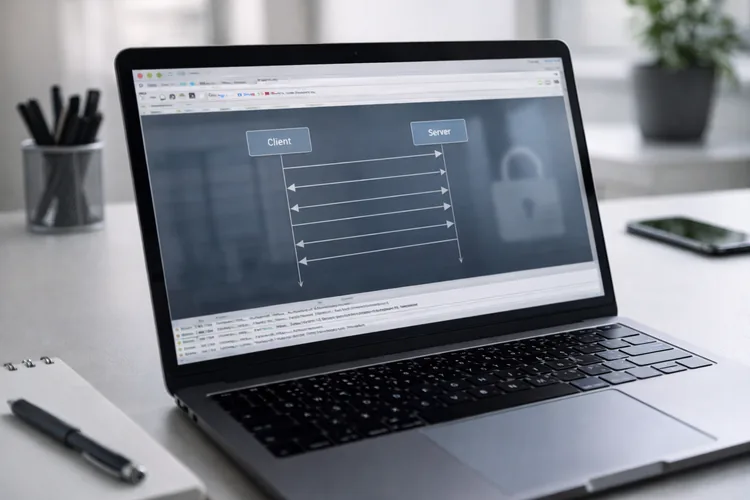
With HTTPS, you often can’t read the full content without decryption. But you can still learn a lot from TLS handshakes, alerts, and metadata like SNI.
TLS filters help you determine whether the connection negotiates successfully. They also help you spot errors like handshake failures and alerts.
Start with tls to see TLS traffic. Then narrow to handshake packets and the server name.
TLS cheat sheet filters
To show TLS only, use tls. This isolates encrypted web traffic patterns and negotiations.
To show TLS handshakes, use tls.handshake. This is your best entry point when diagnosing “can’t connect securely.”
To show Client Hello messages, use tls.handshake.type == 1. This is where the client proposes versions and cipher suites.
To show Server Hello messages, use tls.handshake.type == 2. This confirms the server responded and chose parameters.
To filter by SNI, use tls.handshake.extensions_server_name contains "example.com". This is extremely useful when a single IP hosts many domains.
To surface TLS alerts, use tls.alert_message. Alerts often point to certificate issues, protocol mismatches, or interference by middleboxes.
TCP Health Filters (Loss, Retransmits, Resets)
When a connection is slow, flaky, or randomly failing, TCP analysis flags are often the fastest path to the truth.
Wireshark can detect retransmissions, duplicate ACKs, and out-of-order packets. These signals often correlate with packet loss, congestion, or unstable links.
If you’re troubleshooting performance, start here before blaming the application code.
TCP analysis cheat sheet filters
To show retransmissions, use tcp.analysis.retransmission. A high count can indicate packet loss or congestion.
To show fast retransmissions, use tcp.analysis.fast_retransmission. This often signals a loss detected quickly by duplicate ACKs.
To show duplicate ACKs, use tcp.analysis.duplicate_ack. This commonly appears when packets are missing or arriving out of order.
To show out-of-order packets, use tcp.analysis.out_of_order. This can indicate routing changes, load balancing, or unstable paths.
To show TCP resets, use tcp.flags.reset == 1. RST packets often indicate abrupt closes or rejected connections.
To focus on connection starts, use tcp.flags.syn == 1. This helps confirm whether handshakes are completing.
ARP, ICMP, and DHCP Filters (Local Network Survival Kit)
Not all network problems are “the internet.” Many issues happen on the local network: IP assignment, ARP resolution, and basic reachability.
DHCP tells you whether a device received an IP configuration. ARP tells you whether devices can find each other on the LAN.
ICMP tells you whether packets can reach a destination and whether errors like “destination unreachable” are being returned.
DHCP cheat sheet filters
To show DHCP traffic, use dhcp or bootp. Wireshark may label it as BOOTP depending on the capture.
To show Discover messages, use dhcp.option.dhcp == 1. This is the client asking for an IP.
To show Offer messages, use dhcp.option.dhcp == 2. This is the server offering an IP lease.
To show Request messages, use dhcp.option.dhcp == 3. This is the client requesting the offered address.
To show ACK messages, use dhcp.option.dhcp == 5. This confirms the device got an IP configuration.
ARP cheat sheet filters
To show ARP only, use arp. This helps diagnose “my device can’t reach the gateway” issues.
To show ARP requests, use arp. opcode == 1. These are “Who has X? Tell Y” packets.
To show ARP replies, use arp.opcode == 2. These replies confirm MAC-to-IP mapping.
ICMP cheat sheet filters
To show ICMP (ping) traffic, use icmp. This helps verify basic connectivity patterns.
To show common ICMP errors like Destination Unreachable, use icmp.type == 3. These often explain why a connection fails.
When troubleshooting, it’s helpful to combine ICMP with IP filters. That way, you focus only on your device and its targets.
Stream and Conversation Filters
When you’ve proven which traffic matters, the next step is to isolate the exact conversation. This is how you move from “I see packets” to “I see the session.”
Wireshark labels conversations as streams for TCP and UDP. Filtering by stream is one of the quickest ways to reduce noise to a single narrative.
You can usually identify the right stream by clicking a packet and looking for tcp.stream or udp.stream in the details pane.
Stream filters that save time
To isolate one TCP conversation, use tcp.stream == 7. Replace the number with the stream you want.
To isolate one UDP “stream,” use udp.stream == 3. UDP isn’t connection-oriented, but Wireshark still groups flows.
A fast workflow is to right-click a packet and choose Follow → TCP Stream. Wireshark will isolate the flow and show you the conversation.
A Simple Workflow to Find the Signal Fast
When you’re learning, you don’t need a hundred filters. You need a sequence you can repeat for almost any problem.
This workflow helps you start broad, validate assumptions, and narrow quickly. It’s the same thinking you’ll use in cybersecurity analysis and troubleshooting roles.
You’ll also build confidence because each step gives you a clear yes/no answer before you move on.
Step 1: Isolate your device
Start with ip.addr == <your_device_ip>. This instantly filters out unrelated traffic.
If you don’t know your IP, check your OS network settings first. Then return to Wireshark and apply the filter.
This step alone can reduce an overwhelming capture into something readable.
Step 2: Check DNS before anything else
Apply dns and ip.addr == <your_device_ip>. You want to see queries and responses.
If you see errors with dns.flags.rcode != 0, you’ve found a strong root cause. Fixing DNS often resolves “the website is down” issues immediately.
If DNS looks good, you can move forward knowing the device is resolving names correctly.
Step 3: Validate the TCP handshake
Use tcp.flags.syn == 1 to see connection attempts. Then look for corresponding SYN-ACK responses.
If you see SYNs with no replies, the issue is often routing, firewall policy, or the destination being down.
If you see many tcp.flags.reset == 1, something is actively rejecting or closing the connection.
Step 4: Look for performance indicators
Apply tcp.analysis.retransmission and tcp.analysis.duplicate_ack. These quickly reveal packet loss patterns.
If retransmits spike, your network may be congested or unstable. That can cause slow page loads and random timeouts.
This is often the difference between blaming an app and proving the network is the bottleneck.
Step 5: Narrow to the exact stream
Once you find the relevant packet, filter by tcp.stream == X. Now you’re focused on one session.
This makes it easier to see the order of events and identify where the failure happens.
From here, you can follow the stream, inspect handshake progression, and confirm server behavior.
Common Filter Mistakes and How to Fix Them
If your filter bar turns red, don’t panic. It usually means Wireshark can’t parse your filter syntax.
The most common mistake is mixing capture filter syntax into display filters. For example, host 8.8.8.8 is capture syntax, not display syntax.
The correct display filter equivalent is ip.addr == 8.8.8.8. Once you learn this difference, your success rate rises fast.
Another mistake is using the wrong field name. Wireshark field names are precise, so rely on “Apply as Filter” from the packet details pane.
Finally, remember quotes for strings. Domain names and text values usually require quotes, while numeric values like ports do not.
Why This Skill Matters for Tech Careers
Wireshark filtering is not a niche trick. It’s a core skill that supports cybersecurity, IT, DevOps, backend engineering, and cloud troubleshooting.
In real jobs, you’re often asked to diagnose vague symptoms. Filters help you quickly gather evidence and explain issues clearly to teammates.
Even if you don’t become a network specialist, understanding traffic patterns makes you a stronger problem-solver.
If you’re preparing for a career change, structured learning can accelerate your progress. Code Labs Academy bootcamps are built around job-ready skills, guided projects, portfolio building, and dedicated Career Services support.
If cybersecurity is your target, explore the Cyber Security Bootcamp. If you’re more focused on building and debugging APIs, check the Web Development Bootcamp.
If you want a roadmap instead of random tutorials, you can explore all bootcamps, book a call with an advisor, or review a program page to see the curriculum and outcomes.
Copy-Paste Filter Packs

If you want quick wins, start with these filter packs. Replace IPs and domains with your own values.
These packs are designed to answer common questions fast. They’re also great for practice when you’re learning packet analysis.
Use them as templates, then tweak one condition at a time to see how results change.
“Is it DNS?”
dns
dns.flags.response == 0
dns.flags.response == 1
dns.flags.rcode != 0
dns.qry.name contains "example"
“Is the connection being refused or blocked?”
tcp.flags.syn == 1
tcp.flags.reset == 1
icmp.type == 3
tls.alert_message
“Why is it slow or timing out?”
tcp.analysis.retransmission
tcp.analysis.duplicate_ack
tcp.analysis.out_of_order
tcp.analysis.fast_retransmission
“Show only my device and common web traffic”
ip.addr == 192.168.1.10 and (dns or http or tls)
Conclusion: Less Noise, More Proof
Wireshark gets easier when you stop trying to read everything. The goal isn’t more packets. It’s clearer evidence.
With a small set of filters, you can isolate DNS issues, validate TCP handshakes, spot performance problems, and narrow down to the exact stream in minutes.
If you’re aiming for a role in cybersecurity or a technical role where troubleshooting matters, practicing these filters is a smart investment.
Ready to turn skills like this into a job-ready toolkit with projects and career support? Explore Code Labs Academy programs and apply here.

Learn technical skills online with Code Labs Academy
Join our supportive community, unlock your potential, and embark on a rewarding career path.
Apply Now